Create your account
Fill in four boxes, then confirm your email.
Fill in the form
After you press Start for free, you see Create your RetailPrime account.
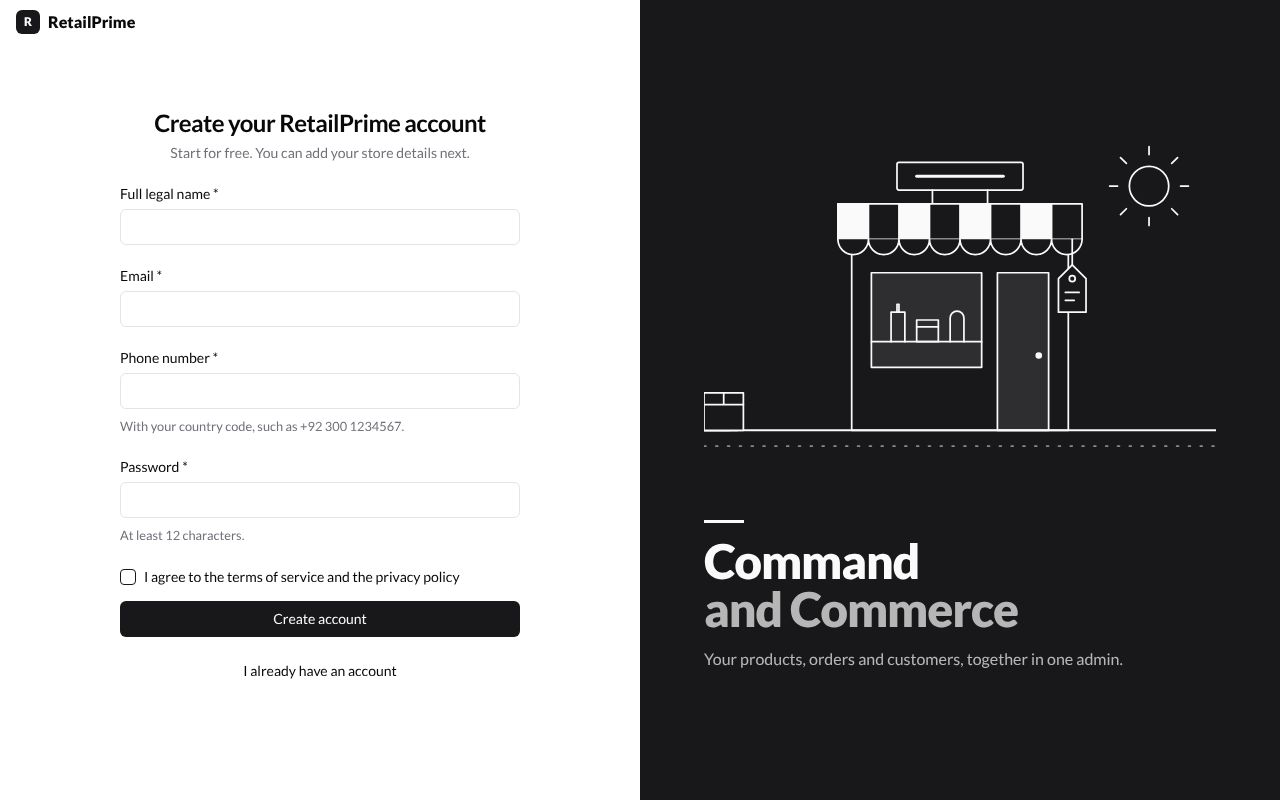
Fill in every box with a star (*). Here is what each one wants:
| Box | What to type | Example |
|---|---|---|
| Full legal name | Your full name | Sana Malik |
An address ending in @qamail.retailprime.app |
owner+sunnysocks@qamail.retailprime.app |
|
| Phone number | Your phone number, starting with your country code | +92 300 1234567 |
| Password | At least 12 characters. A short sentence is easy to remember | my socks are always sunny |
Then tick I agree to the terms of service and the privacy policy.
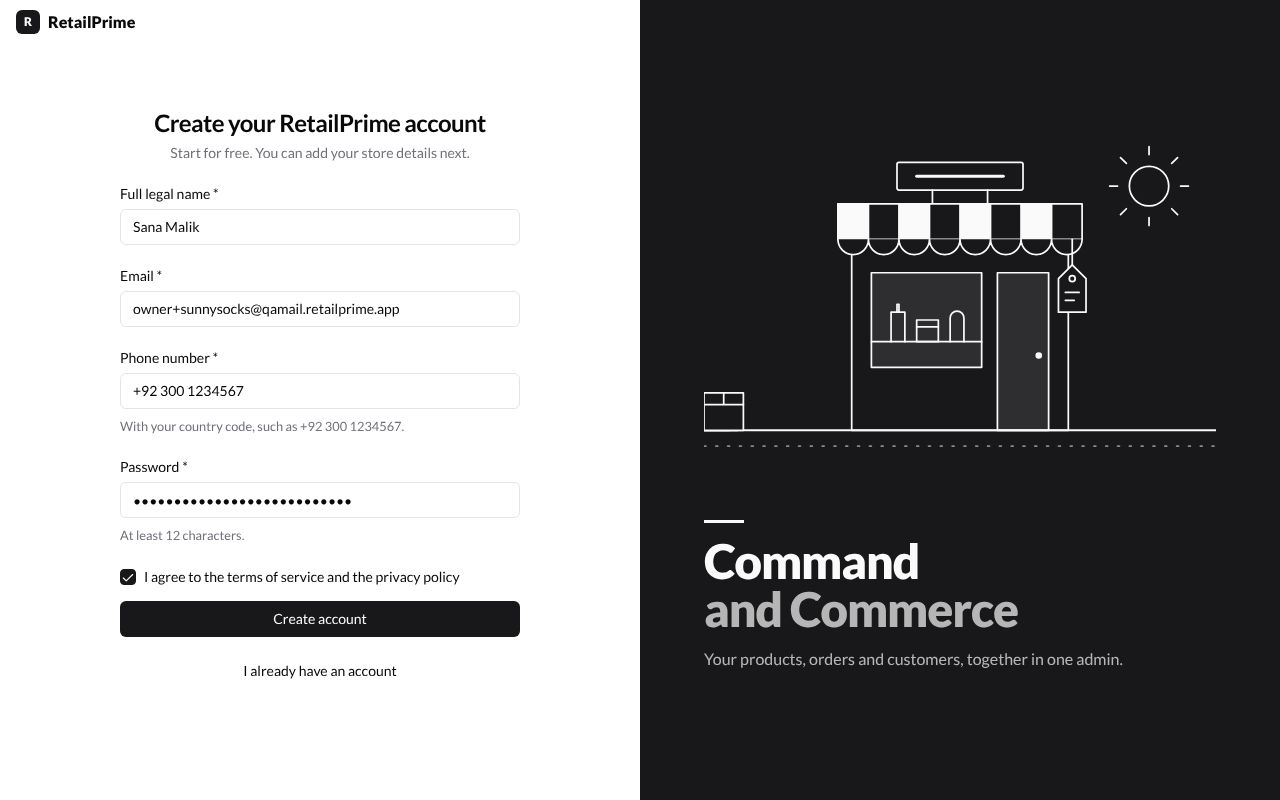
Press Create account.
Check your email
You now see Check your email. RetailPrime has sent you a link.
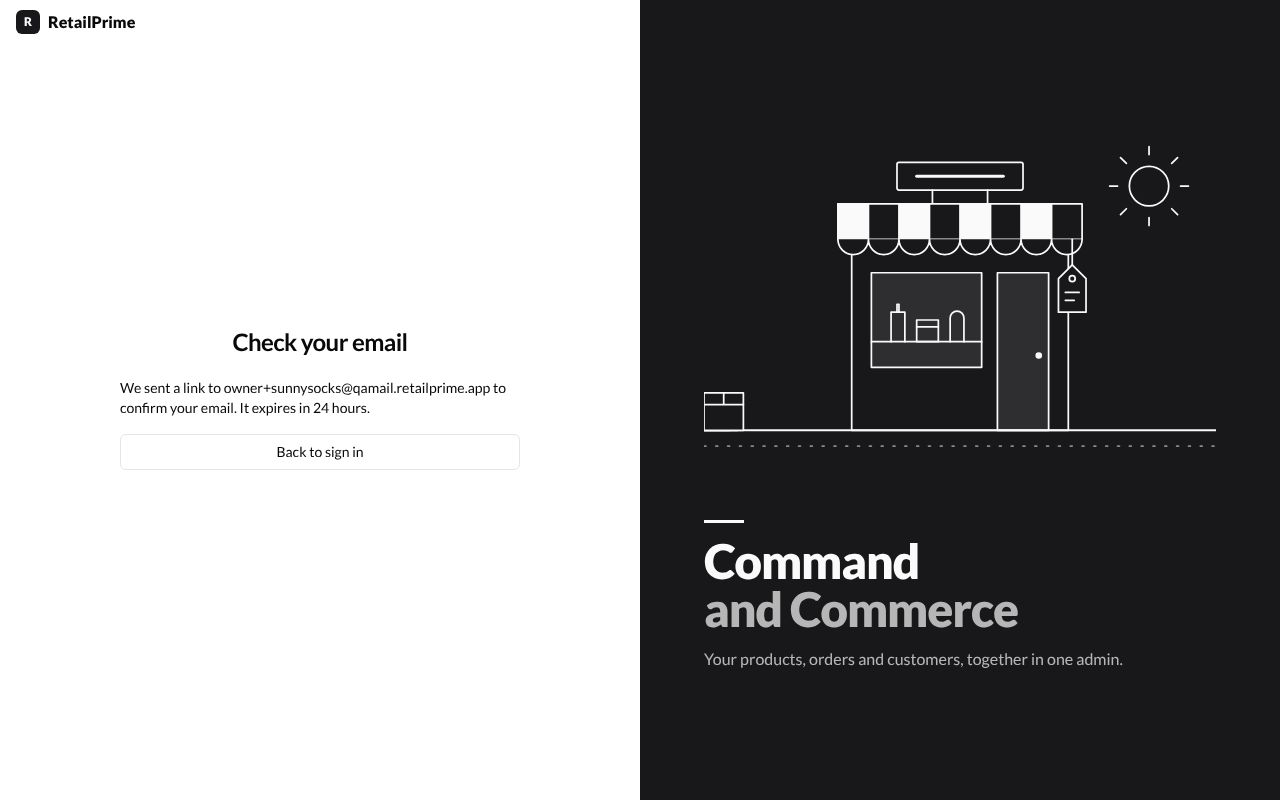
- Open the
qa@qamail.retailprime.appinbox. - Find the email from RetailPrime sent to the address you typed.
- Press Confirm your email in the email.

What’s next
The link opens RetailPrime again and asks you to turn on two-step sign-in.